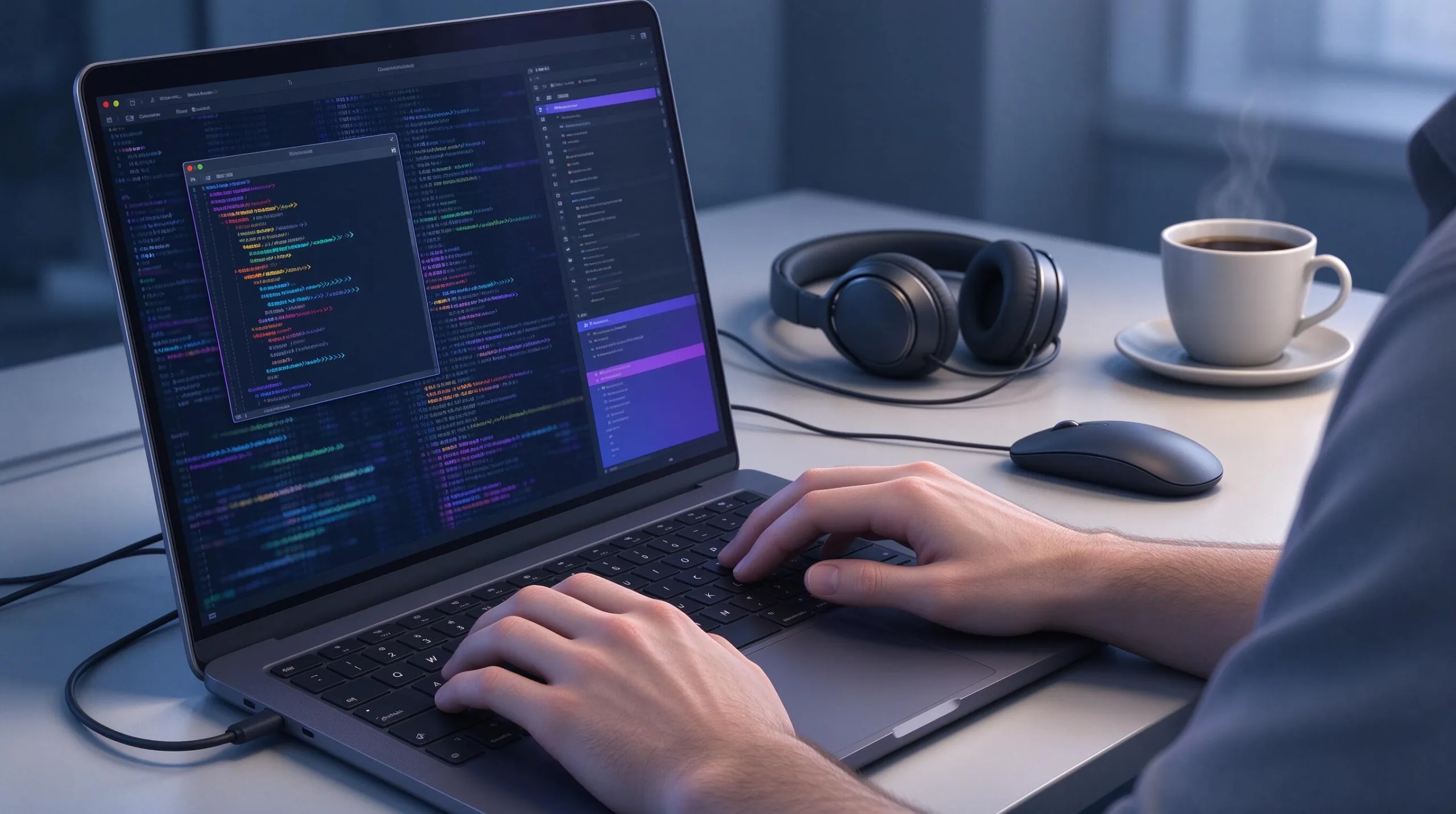
A good developer setup on a MacBook should feel invisible most of the time. The tools need to start quickly, stay out of the way, and produce consistent results whether I am writing code, running tests, or spinning up local services. Over the years I have pared the environment down to a small core that covers Terminal work, package management, containerized development, and a few supporting utilities. The goal is reliability and low maintenance rather than collecting every new tool that appears.
Terminal First: The Foundation of Daily Work
Almost everything begins in the Terminal. I use the default Terminal app with a minimal profile: a clean monospace font at a readable size, enough scrollback to recover context, and a prompt that shows the current directory and git branch without visual noise. Fancy prompts and heavy themes look appealing in screenshots but add friction when the machine is under load or when I am working over slower connections.
I keep a short list of shell aliases and functions for the commands I type dozens of times a day—navigating to common project directories, activating virtual environments, and running frequent test or build commands. These live in a simple dotfile that is easy to version and move between machines. The less time spent re-typing long paths or looking up flags, the more attention stays on the actual problem.
Keyboard shortcuts inside Terminal matter more than most people expect. Mastering tab completion, reverse search through history, and quick window or tab management removes small delays that accumulate across a full day of work. A well-tuned Terminal feels like an extension of thought rather than a separate application that has to be managed.
Homebrew as the Single Source of Truth for Packages
Homebrew is the package manager I trust to install and update the majority of command-line tools and libraries. It keeps everything in one place, handles dependencies cleanly, and makes it straightforward to reproduce a setup on a new machine. I avoid scattering tools across manual downloads, language-specific global installs, and random scripts whenever possible.
The Brewfile approach is useful for capturing the exact set of packages I rely on. A single file lists the formulas and casks I want; running one command restores them. This is especially helpful after a clean macOS install or when configuring a second machine. It also forces periodic review—if a package has not been used in months, it is easy to remove it from the list.
I am deliberate about what goes into Homebrew versus what stays inside language-specific tools such as language version managers or project-local dependencies. System-level utilities and cross-language tools belong in Homebrew. Project-specific libraries stay isolated so they do not pollute the global environment or create version conflicts.
Docker for Consistent Environments
Docker removes the classic “it works on my machine” problem for services and complex dependencies. I run databases, caches, message queues, and full application stacks in containers so the local environment matches staging and production as closely as practical. Docker Desktop on the Mac works reliably for this purpose once the resource limits are set sensibly.
I keep Docker Compose files alongside each project that needs services. Starting a full local stack becomes a single command. Volumes are used for data that needs to persist between restarts, and I am careful to exclude large or sensitive directories from bind mounts that could slow the file system. On Apple Silicon the transition to arm64 images is largely complete, but I still verify critical images rather than assuming every package has a native build.
Resource allocation in Docker Desktop is worth tuning. Too little memory or CPU produces slow containers; too much starves the rest of the system. I adjust these settings based on whether I am running a light set of services or a heavier multi-container setup, and I shut Docker down entirely when I do not need it for extended periods.
Editor and Language Tooling
The editor is a personal choice, but the surrounding tooling matters more than the specific application. I want fast file navigation, solid language intelligence, integrated terminal access, and the ability to run tests or linters without leaving the window. Extensions and plugins are kept minimal; every added piece of functionality has to justify its cost in startup time and complexity.
Language version managers let me switch between project requirements without conflicts. Each project can pin its own runtime while the global environment stays clean. Combined with project-local dependency directories, this keeps different codebases from interfering with one another. The same principle applies to Node, Python, Go, and any other language that appears regularly in my work.
Formatting and linting are automated as much as possible. Running these tools on save or as part of a pre-commit hook removes entire categories of review comments and keeps the codebase consistent without constant manual effort.
Version Control and Project Hygiene
Git is configured with a short set of useful aliases and a global ignore file that excludes common operating-system and editor artifacts. Commit messages follow a simple, readable pattern so the history remains useful months later. I prefer small, focused commits over large batches that mix unrelated changes.
Each project carries a minimal set of documentation at the root: how to install dependencies, how to start the local environment, and any required environment variables. This is as much for my future self as for anyone else who might open the repository. A setup that has to be reverse-engineered every time it is touched is a setup that will eventually be abandoned.
Regular cleanup of old branches, unused Docker volumes, and stale dependencies prevents the gradual slowdown that appears after months of continuous work. A short monthly maintenance pass keeps the machine feeling responsive.
Supporting Utilities That Earn Their Place
A few small utilities round out the environment. A fast file searcher, a better cat/less replacement for viewing files, and a simple process monitor appear regularly in daily work. These tools are chosen for speed and clarity rather than feature count. If a utility requires constant configuration or produces noisy output, it does not stay installed.
Clipboard history, window management, and screenshot tools from the broader productivity set also support development work, but they are kept separate from the core development toolchain. The distinction helps prevent the development environment from becoming a general dumping ground for every useful Mac app.
Keeping the Setup Maintainable Over Time
The most important practice is restraint. Every new tool must solve a recurring problem that existing tools cannot handle adequately. Periodic review of installed packages, running containers, and editor extensions prevents slow accumulation of complexity. A setup that requires an afternoon of troubleshooting after every macOS update is a setup that needs simplification.
Dotfiles and configuration are kept in version control so a new machine can be brought up quickly. The goal is not a perfectly identical environment every time; it is a predictable, low-friction baseline that can be adjusted for the work at hand. Reproducibility matters more than clever customization.
Practical Recommendations
Start with a clean Terminal, install Homebrew, and add only the packages you use weekly. Introduce Docker when you need consistent services rather than as a default for every project. Keep the editor focused and the language tooling isolated per project. Automate formatting and basic checks so they disappear into the background.
A MacBook is more than capable of running a professional development environment without heavy customization. The limiting factor is usually the accumulation of small inefficiencies rather than raw hardware. A deliberate, minimal setup removes those inefficiencies and leaves more attention for the actual code. That is the standard I apply every time the environment starts to feel heavier than it should.