
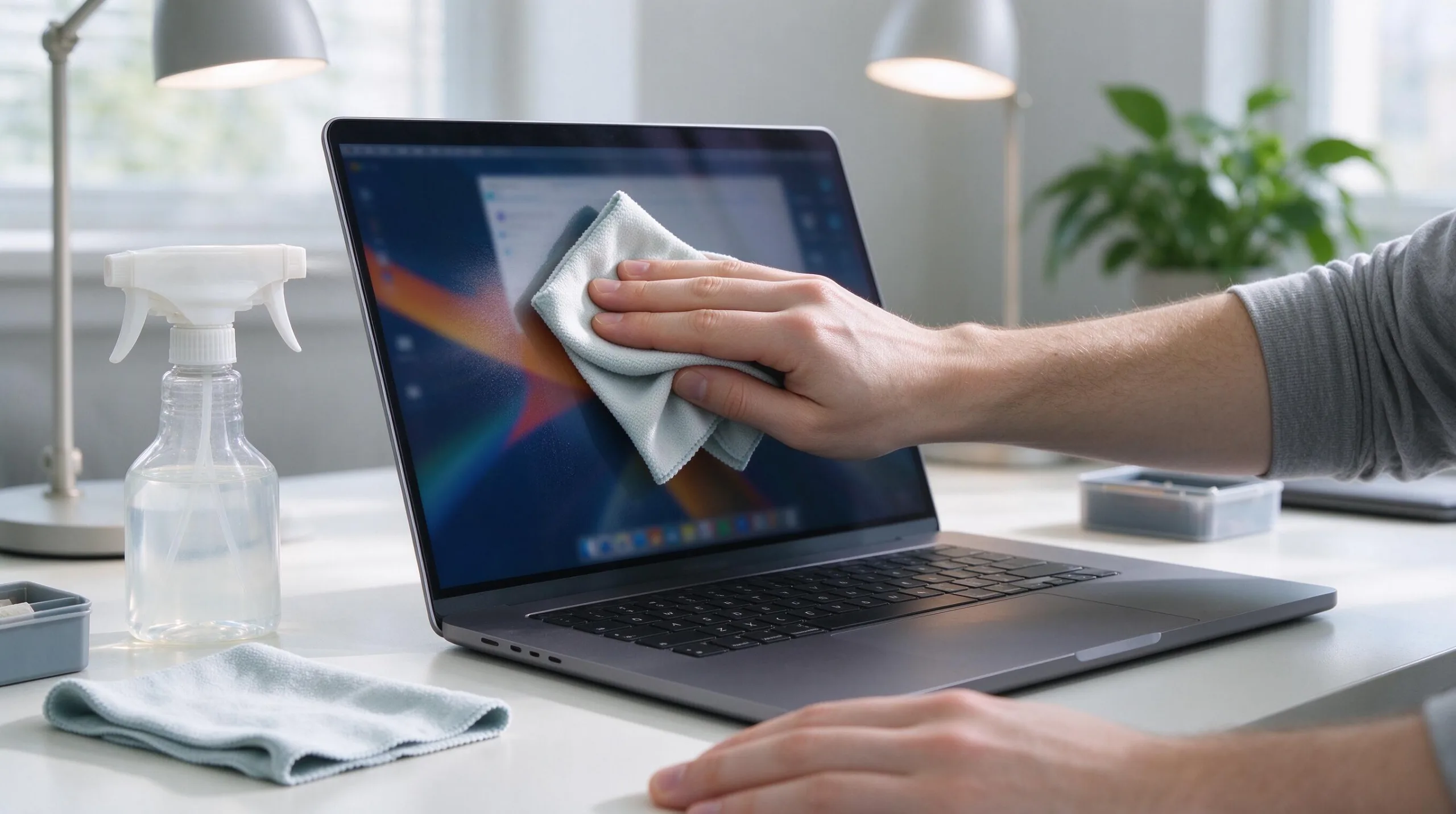
A MacBook that grows uncomfortably warm or spins its fans at high speed is sending a clear signal: something is generating more heat than the cooling system can quietly dissipate. In most cases the cause is ordinary and fixable—heavy processes, blocked vents, accumulated dust, or background software—rather than a hardware failure. Systematic troubleshooting identifies the source quickly and usually restores normal temperatures and fan behavior without repair costs. Here is a practical sequence that works for both Intel and Apple Silicon machines.
Confirm the Symptoms and Gather Basic Data
Start by noting when the heat or noise appears. Does it happen only under specific workloads such as video export, large compilations, or virtual machines? Does it occur at idle or shortly after login? Is the heat localized near the vents, the center of the chassis, or the keyboard deck? These details narrow the possibilities before you change anything.
Open Activity Monitor and sort by CPU or Energy impact. Note any processes that remain high for extended periods. Also check the battery or power adapter status; a machine running on a low-power adapter or in a high ambient temperature will fan more aggressively under the same load. Record the macOS version and whether the behavior began after a recent software update or new application install.
This initial observation phase prevents random changes. Once you know the approximate conditions that trigger the problem, the later steps become targeted rather than speculative.
Check for Demanding or Runaway Processes
The most common cause of sudden heat and fan activity is one or more processes consuming high CPU for prolonged periods. Browsers with many tabs, especially those running video or complex web apps, are frequent offenders. Development tools, virtual machines, photo or video software, and indexing processes can also push sustained loads.
In Activity Monitor, identify the top consumers and quit them one at a time while watching temperatures and fan noise. If the machine cools and quiets after quitting a specific app, you have found the primary driver. Some background helpers restart automatically; in those cases, look for associated login items or launch agents that can be disabled temporarily for testing.
Browser extensions deserve special attention. A single poorly written extension can keep a renderer process busy indefinitely. Testing in a clean browser profile or with extensions disabled often isolates the issue within minutes.
Improve Physical Ventilation and Clear Dust
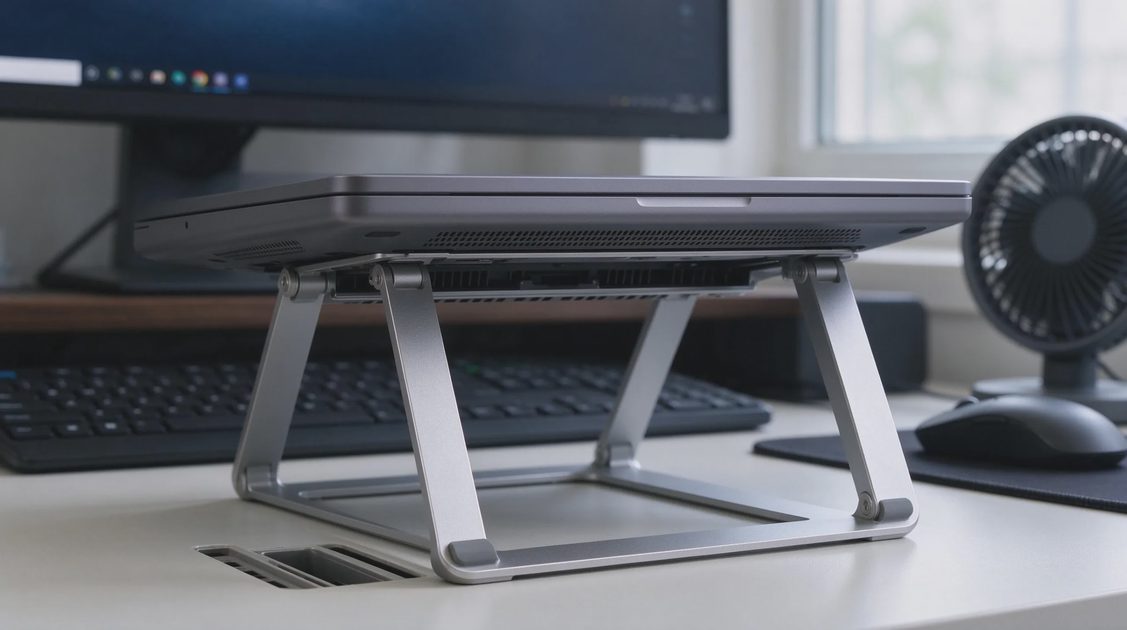
MacBooks rely on unobstructed airflow. Soft surfaces such as beds, couches, or thick blankets block the intake vents and cause rapid heat buildup. Always use a hard, flat surface. Even a simple laptop stand that raises the rear edge improves intake and can lower internal temperatures under load.
Dust accumulation inside the chassis reduces cooling efficiency over years of use. On machines that still have fans, compressed air directed carefully at the vent openings can remove some surface dust. Deeper cleaning requires opening the case and is best left to experienced technicians or Apple Service if the machine is under warranty or AppleCare. Never insert objects into the vents.
Ambient temperature matters more than many people realize. A room that is already 28–30 °C forces the fans to work harder for the same workload. Moving to a cooler environment or improving room airflow produces an immediate improvement in many cases.
Review Login Items, Background Agents, and Startup Software
A surprising amount of heat at idle comes from software that launches automatically and continues running. Open System Settings → General → Login Items and look for unfamiliar or unnecessary entries. Disable them temporarily and restart to test. Third-party cloud sync tools, update helpers, menu-bar utilities, and older Adobe or Microsoft background services are frequent contributors.
Launch agents and daemons installed by applications can persist even after the main app is quit. Tools that list these items make inspection easier, but simply removing unused applications with a proper uninstaller often eliminates the associated background processes. After cleaning, restart and observe whether idle temperatures and fan behavior have improved.
Keep the list of always-running software short. Every additional background process adds a small amount of heat and CPU time that accumulates across a full workday.
Reset SMC / Power Management and NVRAM When Appropriate
On Intel MacBooks the System Management Controller influences fan behavior and thermal management. A reset can restore default fan curves if they have become stuck or erratic. The exact key sequence depends on the model; Apple’s support documentation lists the correct procedure for each generation. On Apple Silicon Macs the equivalent power-management reset occurs automatically during a full shutdown and restart.
NVRAM/PRAM resets are less commonly needed for thermal issues but can clear certain display and power-related inconsistencies that indirectly affect system load. Perform these resets only after software and ventilation checks, and note whether behavior changes afterward so you can reverse course if necessary.
These hardware-adjacent resets are low-risk and worth trying when the machine has been running unusually for days and ordinary process management has not helped.
Evaluate Hardware and Environmental Factors
If the machine still overheats under light load after the previous steps, consider hardware and environment more carefully. A failing battery can generate excess heat. Swollen batteries are a safety issue and require immediate service. Thermal paste degradation on older Intel models can also raise temperatures, though this is less common on recent designs and generally requires professional attention.
External displays, especially high-resolution ones running at full brightness, increase GPU and overall system load. Testing with the external display disconnected isolates whether the display is a significant contributor. Similarly, running on battery versus continuous power adapter can change thermal behavior on some models.
If temperatures remain high and fans stay loud under conditions that used to be quiet, and all software causes have been ruled out, it is reasonable to book a diagnostic with Apple or a reputable service provider. Sustained high temperatures reduce long-term component reliability even if the machine remains usable.
Preventive Habits That Keep Temperatures Reasonable
Once the immediate problem is resolved, a few habits reduce recurrence. Close or suspend heavy applications when they are not in active use. Keep vents clear and the machine on hard surfaces. Limit the number of login items and background utilities. Periodically review Activity Monitor during normal work to catch new processes that have become expensive.
On older machines, accepting slightly longer processing times for demanding tasks rather than pushing the hardware continuously can keep noise and heat within comfortable limits. Apple Silicon Macs handle sustained loads more efficiently than earlier generations, yet they still benefit from the same basic ventilation and process-management practices.
Clear Recommendation
Begin with Activity Monitor to identify high-CPU processes, then ensure proper ventilation and clear any obvious dust at the vents. Review and reduce login items and background agents next. Only after these steps should you consider SMC-style resets or professional hardware diagnostics. Most cases of overheating and loud fans resolve at the software or ventilation stage.
A MacBook that runs warm under heavy creative or development work is often behaving as designed. A MacBook that runs hot and loud while idle or under light load is asking for the checks outlined above. Systematic troubleshooting restores quiet, cooler operation in the majority of cases and clarifies when genuine hardware service is actually required.