
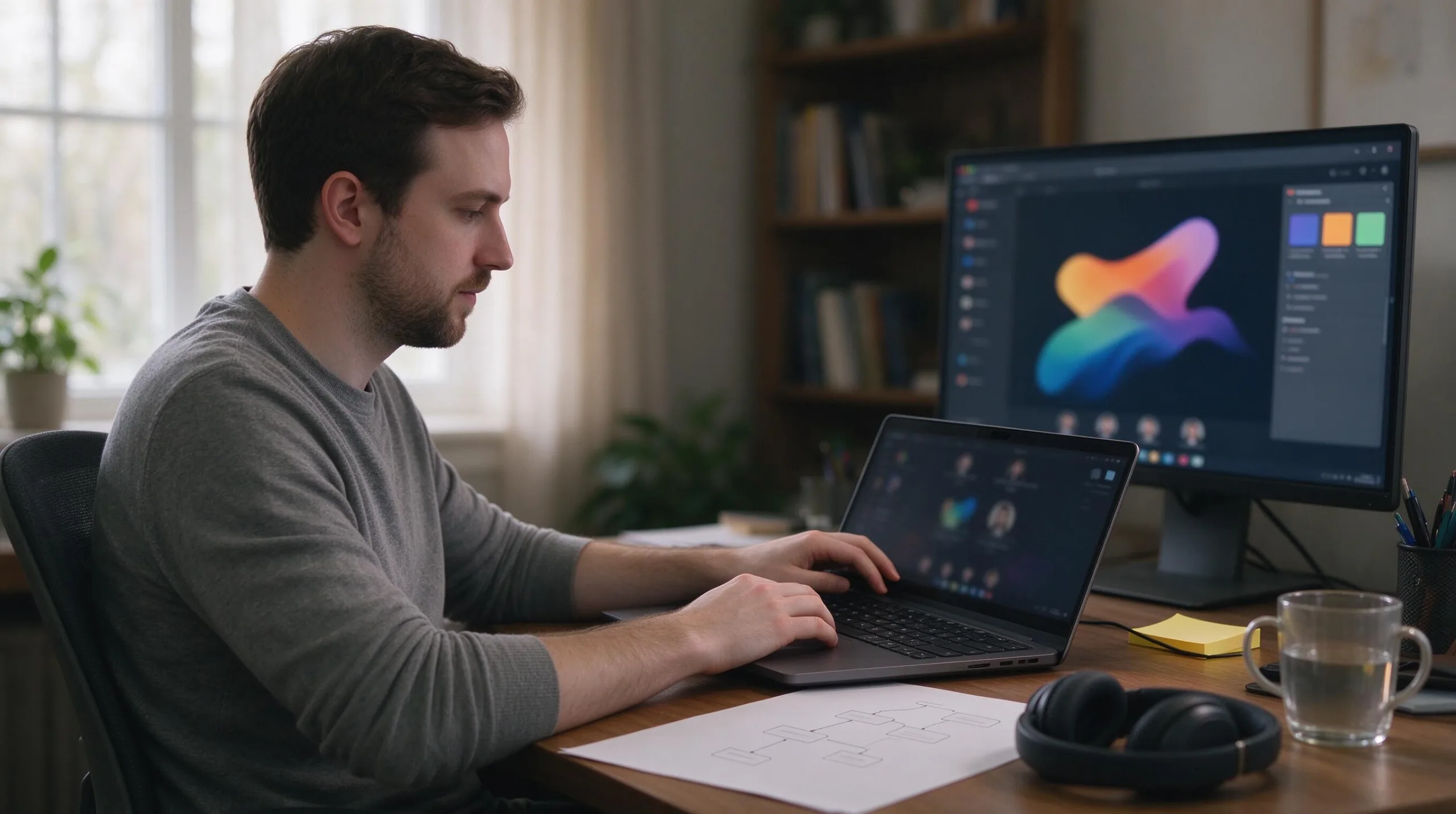
A second monitor remains one of the highest-leverage upgrades for anyone who spends long hours on a MacBook. It reduces constant window switching, makes reference material easier to keep visible, and lets the laptop screen become a dedicated space for communication or secondary tools. The goal is not a dramatic battlestation. The goal is a clean, reliable arrangement that supports real work without introducing new friction. Here is a practical way to build that setup in 2026.

Start with the Right Monitor Priorities
The most important qualities in a second display for a Mac are sharp text under macOS scaling, a single-cable connection that can charge the laptop, and a stand or arm that places the screen at a comfortable height. A 27-inch 4K panel is the sweet spot for most people. It offers enough room for two full-size windows side by side while remaining easy to view at normal desk distances.
5K 27-inch monitors give the cleanest text because they match the pixel density Apple uses on its own displays. They cost more and are less common, but they eliminate the slight softness some users notice with 4K. Ultrawide monitors can replace two separate screens for certain workflows, yet they introduce scaling and window-management quirks that many people find less flexible than two independent displays.
Avoid chasing maximum refresh rate or extreme brightness unless your work specifically benefits from them. For writing, coding, design review, and general productivity, clarity, color consistency, and reliable connectivity matter more than gaming-oriented specifications.
Choose Connection Method Before You Buy
Modern MacBooks make one-cable setups straightforward if the monitor supports USB-C or Thunderbolt with sufficient power delivery. A single cable that carries video, data, and 90 W or more of charging keeps the desk tidy and ensures the laptop stays powered during heavy use. Confirm the exact wattage the monitor provides; a 16-inch MacBook Pro benefits from higher power delivery than a 14-inch model or an Air.
If your preferred monitor only offers HDMI or DisplayPort, you will need a separate charger or a dock. That arrangement still works, but it adds cables and potential points of failure. Thunderbolt monitors that support daisy-chaining make it easier to add a third display later, though most dual-monitor users never need that capability.
Test the connection with your specific MacBook before committing to a permanent desk layout. Some combinations require a particular cable quality or firmware setting to reach full resolution and refresh rate.
Decide Between Stands, Arms, and Laptop Positioning
The laptop itself can sit closed under a stand or open as a third screen. Closing it and using a separate keyboard and mouse produces the cleanest sight lines and better ergonomics for long sessions. A simple laptop stand that raises the closed computer to the same height as the external monitors keeps the desk balanced.
Monitor arms free up desk surface and let you position each screen precisely. A single arm for the primary monitor and the original stand for the secondary display is often enough. Fully arm-mounted dual setups look polished and make cable routing easier, but they require a desk thick enough to clamp securely and add cost. Fixed stands are perfectly adequate if the height and tilt range already match your seating position.
Whatever you choose, the top of the primary screen should sit at or slightly below eye level when you sit upright. Looking down at a low laptop screen for hours is one of the fastest ways to create neck strain.
Arrange the Displays in macOS for Real Work
Open System Settings → Displays and arrange the screen thumbnails so they match the physical layout on your desk. Drag the menu bar to the display you consider primary. Most people keep the Dock on the primary screen as well, though you can set it to appear on the screen where the pointer is.
Scaled resolutions give you more working space at the cost of slightly smaller text. For 4K monitors the “Default” or “More Space” options usually produce the best balance. 5K monitors can often run at native resolution with comfortable text size. Spend a few minutes testing the options with your actual applications rather than deciding from the preview alone.
Color profiles should be set to the monitor’s built-in profile or a calibrated one if you do color-critical work. True Tone and Night Shift can be enabled independently on each display; many people leave True Tone on for general work and turn it off when matching colors between screens.
Cable Management That Stays Manageable
Route the main video and power cable from the MacBook to the primary monitor first. If you are using a second cable for the secondary display, keep it parallel and secured. Adhesive cable clips, a simple under-desk tray, or a single fabric sleeve prevent the gradual tangle that appears after a few weeks of small adjustments.
Leave a short service loop near the laptop so you can open or close it, or move it slightly, without pulling connectors. Label both ends of every cable if you ever need to troubleshoot or travel with the setup. Good cable management is less about aesthetics and more about preserving the ability to change or debug the arrangement later without frustration.
Keyboard, Mouse, and Input Considerations
Once the laptop is closed or elevated, a comfortable external keyboard and mouse become essential. Any reliable USB-C or Bluetooth set works. Many people prefer low-travel keyboards that feel similar to the MacBook’s own mechanism, while others choose mechanical options for longer typing sessions. Position the keyboard so your elbows stay near 90 degrees and your wrists remain straight.
A trackpad can remain useful even with a mouse. Some users keep the laptop open at the side specifically for the trackpad and Touch ID. Others prefer a separate Magic Trackpad. There is no single correct answer; the goal is simply to avoid constant reaching or awkward shoulder positions.
Lighting, Glare, and Daily Comfort
Place the monitors perpendicular to windows when possible to reduce glare. A bias light behind the primary display can ease eye strain in darker rooms by reducing the contrast between the bright screen and the surrounding wall. Matte screen finishes handle mixed lighting better than glossy ones for most office environments.
Keep brightness at a level that matches the room rather than maximum. macOS can adjust brightness automatically on Apple displays; third-party monitors often need manual or software control. Small changes here have a larger effect on long-term comfort than most people expect.
A Practical Starting Configuration
For most remote workers and developers a solid starting point looks like this: one 27-inch 4K or 5K monitor as the primary display with USB-C or Thunderbolt charging, a second matching or slightly smaller monitor for reference material, the MacBook closed on a short stand or vertical dock, an external keyboard and mouse, and basic cable management. This arrangement supports coding, writing, research, and light creative work without requiring constant window shuffling.
You can expand later with a third display, a more elaborate arm system, or higher-end color-critical panels if your work demands them. Beginning with a simple, reliable dual-monitor layout almost always produces a bigger improvement than waiting until every component is perfect.

Final Recommendations
Buy the monitor that gives you sharp text and one-cable convenience first. Solve ergonomics with a stand or arm second. Manage the cables so the setup remains easy to adjust. Configure macOS displays deliberately rather than accepting the defaults. The result should feel like a natural extension of the MacBook rather than a separate system you have to manage.
A well-executed dual-monitor desk reduces friction every single workday. That compounding benefit is worth more than any single high-end component. Build the version that fits your actual tasks and physical space, then refine it only when a clear limitation appears.