Apple Intelligence has matured into something I reach for without thinking about it. On my M-series MacBook Pro running macOS 27, the features that matter most are the ones that remove small frictions in writing, research, photo cleanup, and inbox triage rather than the ones that generate novelty images for social media. I still treat every AI suggestion as a draft that needs a human edit, and I keep an eye on whether a request stays on-device or routes through Private Cloud Compute. That caution has not stopped the useful tools from becoming part of the daily workflow.
Here are the five features that consistently earn their place on a working Mac in late 2026.

Writing Tools That Actually Speed Up Drafts
Writing Tools sit inside Mail, Notes, Pages, and most text fields. Highlight a paragraph, open the tools, and you can proofread, rewrite in a different tone, or generate a short summary. The on-device model handles the majority of these requests quickly and privately. For longer or more open-ended composition, the system can offer to escalate, but the everyday polish stays local.
In practice I use it to clean up meeting notes before I send them, to turn a rough outline into a clearer first draft of a client email, and to shorten a long status update without losing the key points. The “Make more professional” or “Make more concise” options are blunt instruments, so I always review the output. When the model invents a detail that was never in the original text, I discard it immediately. Still, the time saved on basic grammar, tone, and structure adds up across a week of remote work and writing.
The feature respects the existing document. It does not rewrite your entire style unless you ask it to. That restraint is why it remains useful rather than becoming another source of generic AI prose.
Visual Intelligence for On-Screen Questions
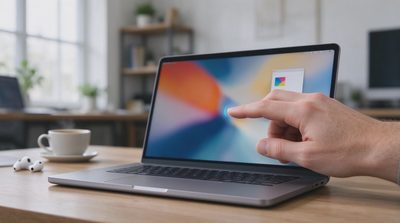
Visual Intelligence on the Mac lets you select any region of the display—Command-Shift-Space is the current shortcut—and ask Siri about what is there. A screenshot of a dense PDF, a chart in a spreadsheet, an error message in Terminal, or a paragraph in a browser can be queried directly. The system can extract text, explain a concept, or suggest next actions based on the visible content.
I reach for it when a long support document or a technical paper is open and I need a quick summary of one section without leaving the page. It also helps when an unfamiliar dialog or preference pane appears and I want a plain-language explanation. Because the selection is explicit, the feature feels more controlled than a fully ambient screen reader. Results are useful for orientation and extraction; they are less reliable for complex multi-step reasoning that requires deep domain knowledge outside the visible content.
The privacy model is clearer here than with some other AI tools: you decide exactly what portion of the screen is analyzed. That control makes it easier to trust for work documents that should not leave the machine.
Siri with Personal Context That Finally Feels Useful
The updated Siri in macOS 27 can draw on personal context—recent emails, messages, calendar events, and files—when you allow it. Asking “What was the tracking number from the last shipping email?” or “When is my next call with the design team?” now returns answers grounded in your actual data more often than the old Siri ever managed. The dedicated Siri app also keeps conversation history so you can continue a thread later.
I use it for quick retrieval rather than open-ended research. Finding a confirmation number, locating a file I edited last week, or confirming a meeting time is faster than digging through Mail or Finder manually. The system still falters when the request is ambiguous or when the relevant data lives in a third-party app that has not exposed the right intents. In those cases I fall back to Spotlight or a direct search.
Because personal context is involved, I keep the feature limited to the accounts and data I am comfortable including. The ability to review and clear conversation history is a practical safeguard.
Photos Tools That Fix Real Problems
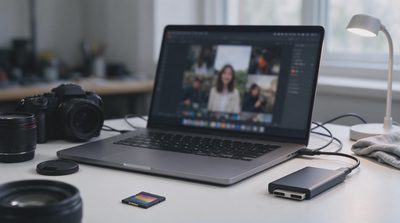
The enhanced Clean Up, Extend, and Spatial Reframing tools inside Photos solve small but frequent annoyances. Clean Up removes distracting objects or people more cleanly than earlier versions. Extend fills in the edges of a tightly cropped shot so a photo can be reframed without obvious distortion. Spatial Reframing lets you adjust the apparent camera angle after the fact on supported images.
For a photographer or anyone who shoots a lot of everyday images, these tools reduce the number of shots that would otherwise be discarded or require a trip into a heavier editor. I use Clean Up to remove a stray cable or a photobomber from an otherwise good frame, and Extend when a landscape needs a little more sky or foreground for a layout. The results are not magic—complex scenes still need careful review—but they are good enough that many images stay inside Photos instead of being exported for more work.
These features run primarily on-device on supported Apple silicon Macs, which keeps the original files private during the edit.
Notification and Mail Summaries That Reduce Noise
Apple Intelligence can summarize long notification stacks and email threads. A cluster of messages from the same conversation collapses into a short digest. Mail can surface the key points of a long thread so you decide whether the full exchange needs attention right now.
On a busy day the summaries prevent the constant context-switching that comes from opening every notification. I still open the important threads, but the low-priority ones stay collapsed until I have time. The accuracy is high enough for triage; it is not a substitute for reading anything that carries real consequences or legal weight. When a summary feels incomplete I expand the original messages immediately.
The feature is most valuable when notification volume is high and the majority of messages are routine status updates rather than decisions that require full attention.
Limitations Worth Keeping in Mind
Not every Mac that can install macOS 27 can run the full set of Apple Intelligence features; M1 or later is required, and some of the heavier models perform better with more unified memory. Language support is still expanding, and certain advanced Siri capabilities remain in beta or limited to specific regions. Complex creative or technical work still benefits more from dedicated local tools or careful human review than from the system models.
I treat Apple Intelligence as a set of assistants that handle the repetitive layers of writing, cleanup, and retrieval. The judgment calls, the final wording, and the decisions that affect other people stay with me. Used that way, the five features above reliably reduce friction without creating new dependence or new privacy exposure beyond what I have already accepted by using the Mac ecosystem.