Apple’s current MacBook lineup has finally moved most base models past the painful 256 GB era. The M5 MacBook Air now starts at 512 GB, and many MacBook Pro configurations open at 1 TB. That change helps, but the storage is still soldered. Whatever you choose at purchase is what you keep for the life of the machine. I have watched students and developers fill a base drive faster than they expected, and I have also watched people overspend on internal storage they never used because an external SSD would have done the same job for less money.
The right decision depends on the work you actually do, not the marketing page. Here is a practical look at how base storage behaves in real workflows and when it makes sense to pay for more—or to keep the money and buy a fast external drive instead.
What “Base Storage” Means on Today’s MacBooks
On the current M5 MacBook Air the floor is 512 GB. On the entry MacBook Pro it is typically 1 TB. The older 256 GB option survives mainly on the MacBook Neo and some previous-generation or refurbished machines. Once the machine leaves the factory the SSD cannot be upgraded. That single fact shapes every storage decision.
macOS itself, plus system data, caches, and Apple Intelligence features, routinely occupies 40–80 GB or more after a few months of normal use. Applications, local photo libraries, Xcode simulators, Docker images, and downloaded media all compete for the remaining space. A 512 GB drive therefore gives you roughly 400–450 GB of practical working room once the system has settled in. A 1 TB drive roughly doubles that cushion.
The speed difference between the smallest and next storage tier is sometimes measurable because Apple uses more NAND chips on higher-capacity drives, but the bigger issue for most people is simply running out of room. When free space drops below 20–30 GB, macOS starts managing memory more aggressively and everyday tasks can feel slower even if the CPU is still fine.
How Much Space Real Workflows Actually Consume
A college student living mostly in browser tabs, Google Docs, and cloud photo storage can stay comfortable on 512 GB for years if they are disciplined about downloads and large media files. The same student who keeps local copies of lecture recordings, installs multiple creative apps, or maintains a growing photo library will feel the squeeze within a year or two.
Developers face a steeper curve. Xcode, its simulators, node_modules folders, Docker containers, and local databases expand quickly. A single large project plus a couple of virtual machines can consume 100 GB or more. Photographers and video editors who keep active libraries on the internal drive need still more headroom; 4K ProRes footage and RAW catalogs grow without mercy.
Remote workers who treat the MacBook as a primary machine for mixed tasks—documents, light editing, occasional local AI experiments, and personal media—usually land in the middle. 512 GB works if they offload finished projects and older media. 1 TB feels more relaxed and reduces the frequency of cleanup sessions.
The Real Cost of Apple’s Storage Upgrades
Apple prices storage in large steps. Moving from the base 512 GB on a MacBook Air to 1 TB commonly adds $200. Jumping further to 2 TB or 4 TB raises the premium more steeply. On MacBook Pro models the base is already higher, so the next steps start from 1 TB and climb quickly.
Those dollars buy convenience and performance that stays with the machine wherever you take it. They also buy something you cannot change later. An external SSD of similar capacity often costs less than Apple’s internal upgrade and can be moved between machines or used as a Time Machine volume. The trade-off is the cable, the extra device to carry, and the small friction of deciding which files live where.
For many practical buyers the internal upgrade is worth it only up to the point where the machine stops feeling constrained for the work they do every day. Beyond that point an external drive usually delivers better value.
When an External SSD Is the Smarter Move
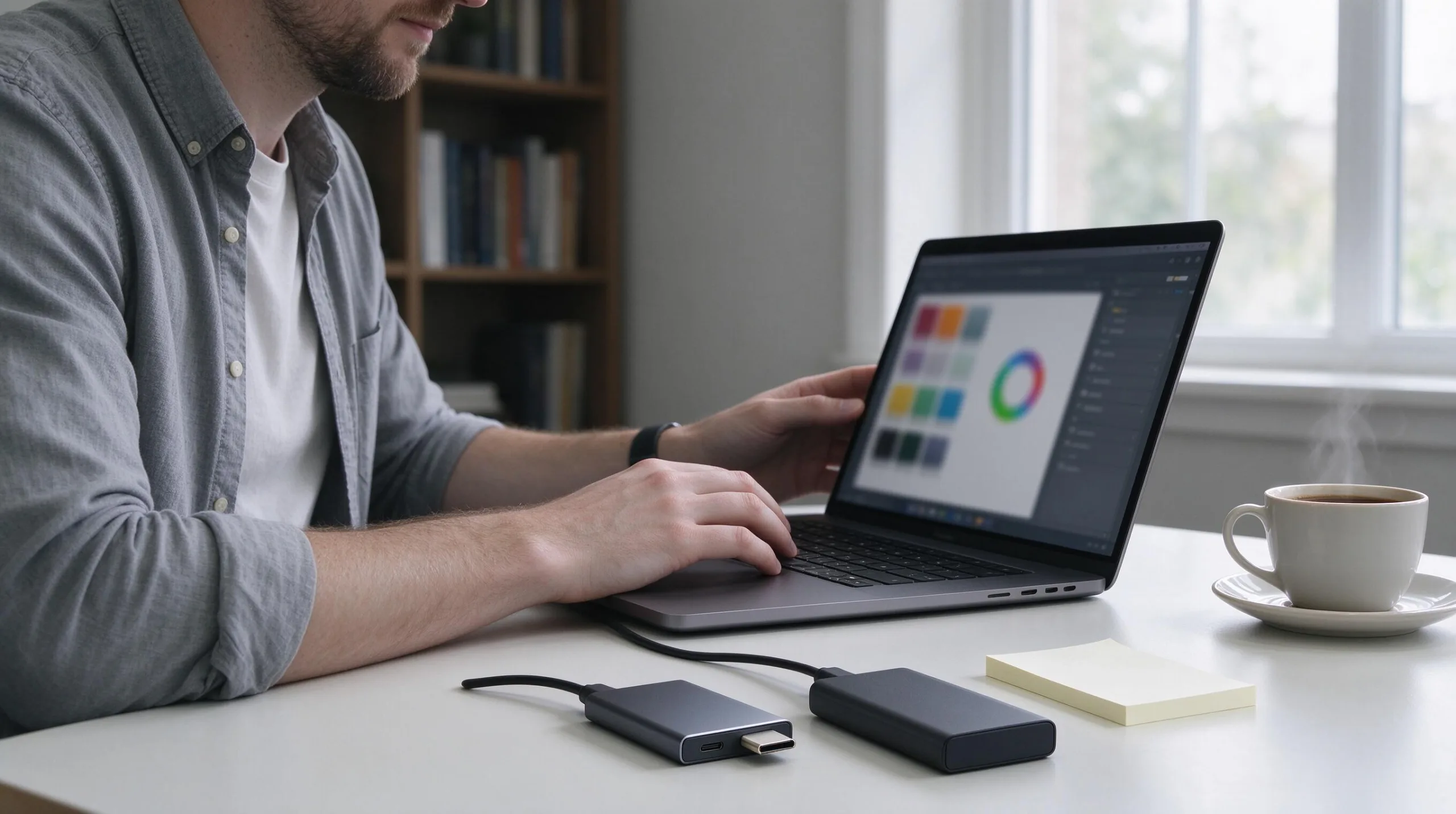
A fast USB-C or Thunderbolt external SSD handles project archives, photo libraries, video footage, and Time Machine backups extremely well. Modern portable drives deliver sequential speeds that feel nearly as responsive as internal storage for most file operations. They also let you keep the internal drive lean so the system always has free space for caches and temporary files.
The limitation is obvious: the files are not with you unless the drive is plugged in. Apps, system data, and the documents you need on a coffee-shop table still need to live internally. That is why the combination of a solid base internal drive plus a well-organized external usually outperforms a maxed-out internal configuration that still fills up.
Students on a tight budget, developers who already work with external project volumes, and photographers who keep active catalogs on fast external media often get more total usable storage for less money by choosing the base internal option and investing the difference in a quality external SSD.
Practical Storage Tiers for Different Users
Here is a straightforward comparison of common needs against realistic internal capacities and the role an external drive can play:
User Type | Comfortable Internal | When External Helps Most | Notes |
|---|---|---|---|
Light student / web-first | 512 GB | Archives, media downloads | Cloud + discipline keeps it workable |
Typical student / remote worker | 512 GB–1 TB | Finished projects, photo libraries | 1 TB reduces cleanup frequency |
Developer (Xcode, Docker) | 1 TB | Large repos, VMs, build artifacts | Simulators eat space quickly |
Photographer / light video | 1 TB | RAW libraries, footage archives | Active catalog stays internal |
Heavy video / multi-track audio | 1–2 TB+ | Source media, renders, sample libraries | External is almost mandatory |
The table is a starting point, not a rule. Your actual libraries and project sizes matter more than the category label.
Managing Space Without Constant Anxiety
Even a well-chosen drive benefits from occasional housekeeping. macOS Storage settings show which categories are growing. Optimized Storage and iCloud Photos can keep local copies of older media small while still making everything available on demand. Moving completed projects to an external drive or a secondary backup volume frees the internal SSD for active work.
Avoid letting the free-space buffer drop too low. When the drive is nearly full, performance and reliability both suffer. A simple monthly check is usually enough for most people. Tools that visualize folder sizes help locate the large items that quietly accumulate—old installers, downloaded disk images, and forgotten project folders.
An older Mac with a nearly full drive is not automatically a candidate for replacement. Clearing space or adding an external volume often restores the machine to useful service for another year or two.
Clear Recommendation
Buy the base storage only if your work is genuinely light and cloud-centric, or if you already plan to keep large media and projects on external drives from day one. For most students, remote workers, and developers the current 512 GB floor on the MacBook Air or the 1 TB floor on the MacBook Pro is the practical minimum that avoids frequent cleanup without overspending.
If you regularly work with local media libraries, multiple development environments, or large creative projects, the step up to the next internal tier is usually money well spent. Beyond that point, put the extra dollars into a fast external SSD rather than Apple’s higher internal options. The goal is a machine that stays useful for the work you actually do, not one that carries unused capacity you paid a premium to have soldered in place.